Data · 12 min
Automating Microsoft Fabric Capacity Scaling: Four Ways to Do It
A hands-on guide to automating Microsoft Fabric capacity scaling: Logic Apps, Automation runbooks, Azure Functions, and Fabric Activator.

Amrutha Satishkumar
July 29, 2026

Fabric will not autoscale your capacity for you
Teams that move to Microsoft Fabric tend to fall for it fast. One copy of the data in OneLake, every workload in one place, and a single capacity powering all of it. It feels like the platform just handles things, and for the most part it does.
Then you watch it for a week. Monday morning the dashboards light up and the refreshes pile in, and the capacity is working hard. Tuesday at 2am it is doing almost nothing. The weekend goes quiet. Month-end spikes. Real usage has a shape, it breathes in and out across the day and the week.
Here is the catch: your capacity does not breathe with it. A Fabric F SKU is billed by size, per hour, and it stays exactly one size until you change it. An F64 sitting idle overnight and all weekend costs the same per hour as an F64 running a heavy refresh. The one thing people assume comes with the word “capacity” in the cloud, scaling up when it is busy and down when it is quiet, is the one thing Fabric does not do for you on its own. There is no rule you flip that behaves like a virtual machine scale set.
The good news is that every lever you need is exposed through the Azure REST API, so you can teach your capacity to breathe yourself. This post walks through four ways to do exactly that, from a five-minute no-code schedule to a fully Fabric-native, reactive setup, with the actual API calls and the trade-offs of each.
What Fabric already handles for you
Fabric does a surprising amount out of the box, and it pays to know that before you automate anything. Under the hood it smooths and bursts your usage, spreading short spikes across quieter periods so a brief peak rides through without a bigger SKU. For plenty of workloads, that alone absorbs the variability you were worried about.
There is also Autoscale Billing for Spark, a genuinely elegant option for Spark-heavy work. Enable it on a capacity and Spark jobs run on a serverless, pay-as-you-go pool instead of consuming your capacity’s compute units. You set a maximum CU limit and pay only for the Spark runtime you use. It is a separate, opt-in model per capacity, so the rest of your capacity keeps humming along untouched.
That already gives you two strong starting points: let smoothing and bursting handle the small stuff, and turn on Autoscale Billing for Spark when Spark is the pressure. The approaches below add scheduled scaling on top, for when the whole capacity is simply larger than it needs to be for big stretches of the week.
What throttling actually looks like
Bursting and smoothing absorb a lot, but a capacity can still be overloaded by sustained demand, and it helps to know exactly how Fabric responds, because those same signals are what you scale on later.
Fabric smooths CU usage across 30-second timepoints, spreading interactive operations over 5 to 64 minutes and background operations over 24 hours. When smoothed demand runs ahead of what the capacity can supply, throttling comes in progressively, based on how far into the future your committed usage already reaches:
- Up to 10 minutes ahead: overage protection. Nothing is throttled, so short spikes ride through.
- 10 to 60 minutes ahead: interactive delay. New interactive requests are delayed 20 seconds at submission. Background work runs normally.
- 60 minutes to 24 hours ahead: interactive rejection. New interactive requests are rejected, while background work still runs.
- Beyond 24 hours ahead: background rejection. New requests, interactive and background, are rejected.
In-flight operations are never throttled, they always run to completion. And the two fastest ways to clear throttling on an F SKU are the levers we already have: temporarily scale up, so idle headroom pays down the backlog faster, or pause and resume, which resets committed future usage so the capacity accepts work again right away.
The two levers you are actually pulling
All four approaches automate the same two operations. It helps to be clear on them before the tooling.
- Resize in place. Change the SKU of the capacity, for example from F64 down to F16 overnight and back up in the morning. You are charged the pay-as-you-go hourly rate for whatever size you are currently on. Scaling below your reserved instance amount does not change the reserved part of your bill.
- Pause and resume. Stop the capacity entirely. This is the biggest saver because a paused capacity stops billing compute, but the content on it becomes unavailable while it is paused, so it fits dev and test capacities far better than production.
A quick note on a third option people reach for: moving workspaces onto a smaller capacity and back. You can do it, but reassigning a workspace to a different capacity cancels its running jobs. Resizing the capacity in place does not disturb the workspaces sitting on it, so prefer resize in place unless you have a specific reason not to.
Every approach below calls the same Azure REST endpoints. Resize is a PATCH on the capacity resource. Pause and resume are POST actions.
PATCH https://management.azure.com/subscriptions/{sub}/resourceGroups/{rg}/providers/Microsoft.Fabric/capacities/{name}?api-version=2023-11-01
Content-Type: application/json

{
  "sku": { "name": "F16", "tier": "Fabric" }
}
POST https://management.azure.com/subscriptions/{sub}/resourceGroups/{rg}/providers/Microsoft.Fabric/capacities/{name}/suspend?api-version=2023-11-01
POST https://management.azure.com/subscriptions/{sub}/resourceGroups/{rg}/providers/Microsoft.Fabric/capacities/{name}/resume?api-version=2023-11-01Whatever calls these needs the right permissions on the capacity. Create an Azure custom role scoped to just these actions and assign it to the identity doing the scaling:
Microsoft.Fabric/capacities/readMicrosoft.Fabric/capacities/writeMicrosoft.Fabric/capacities/suspend/actionMicrosoft.Fabric/capacities/resume/action
Approach 1: A Logic App on a schedule
This is the fastest path to real savings and needs no code. A Logic App runs on a timer and calls the REST API to resize or pause on a fixed schedule.
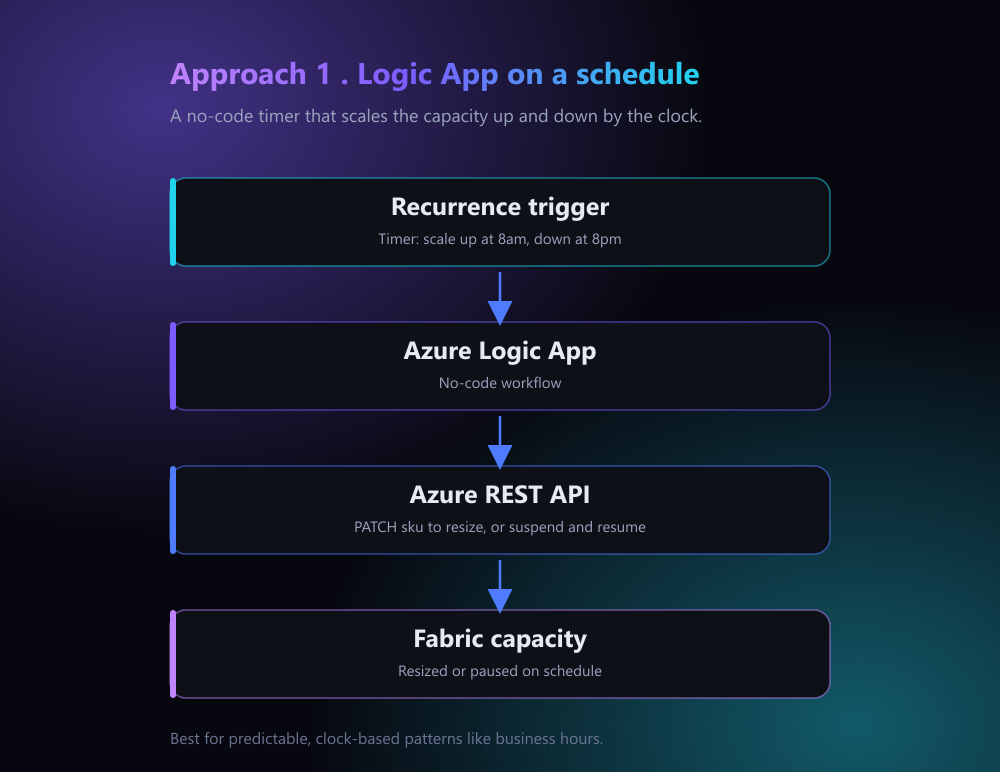
The wiring:
- Give the Logic App an identity. Turn on its system-assigned managed identity, then assign the custom role above to that identity, scoped to the Fabric capacity resource.
- Add a Recurrence trigger. For a business-hours pattern, use two Logic Apps or one with a condition: scale up at, say, 8am on weekdays and down at 8pm.
- Add an HTTP action. Set the method to
PATCHfor a resize, orPOSTfor suspend and resume. Point the URI at the capacity resource with the paths shown above. Under authentication, choose Managed Identity and set the audience tohttps://management.azure.com. - For a resize, add the body with the target SKU. For pause and resume, no body is needed.
That is the whole thing. A capacity that drops from F64 to F16 for the twelve quiet hours of each weekday, and stays small all weekend, is running at its small size for well over half of every week.
Best for: predictable, clock-based patterns like business hours. It is the default I would start with.
Approach 2: An Azure Automation runbook
If your team already runs operational tasks through Azure Automation, a PowerShell runbook is the natural home for the same logic. Microsoft even publishes a Fabric module in the runbook gallery for pause and resume.
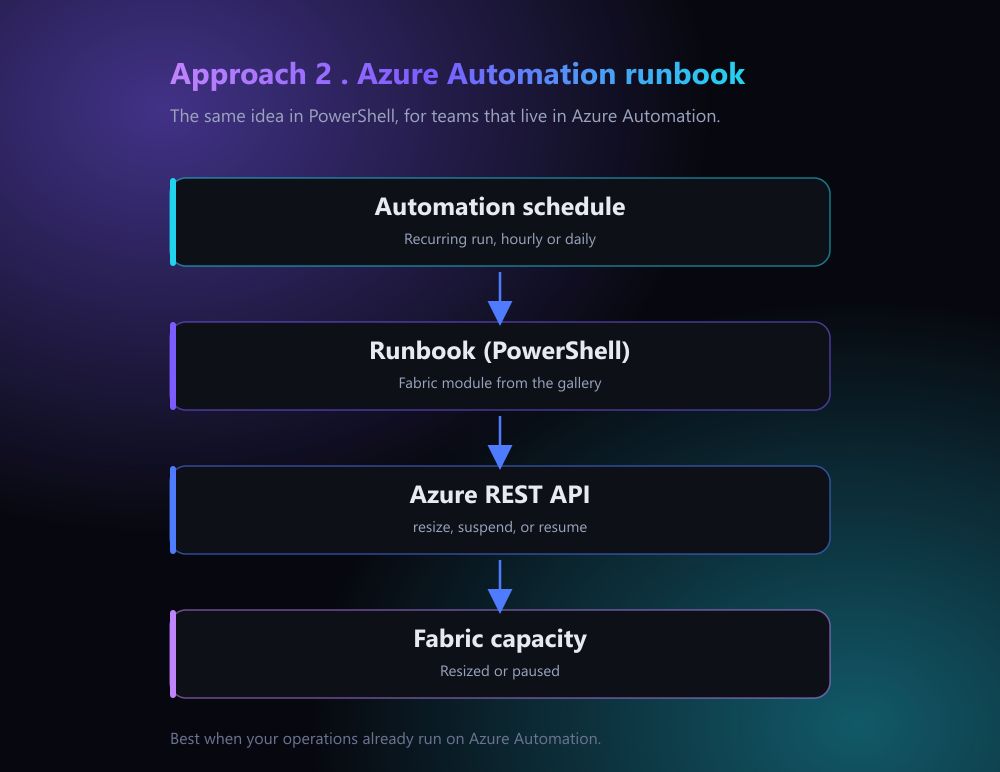
Using the managed identity of the Automation account, the calls are clean with Invoke-AzRestMethod:
# Authenticate with the Automation account's managed identity
Connect-AzAccount -Identity

$base = "/subscriptions/$sub/resourceGroups/$rg/providers/Microsoft.Fabric/capacities/$name"
$api  = "?api-version=2023-11-01"

# Resize down to F16
Invoke-AzRestMethod -Method PATCH -Path "$base$api" `
  -Payload '{"sku":{"name":"F16","tier":"Fabric"}}'

# Or pause entirely
Invoke-AzRestMethod -Method POST -Path "$base/suspend$api"

# Or resume
Invoke-AzRestMethod -Method POST -Path "$base/resume$api"
Attach a schedule to the runbook and you have the same behavior as the Logic App, expressed in code your ops team can version and review.
Best for: teams whose operational tooling already lives in Azure Automation.
Approach 3: A timer-triggered Azure Function
If you would rather express your scaling logic as code than in a Logic App designer, a timer-triggered Azure Function does the same scheduled job and costs almost nothing to run. It fits well when scaling is one small piece of a larger codebase you already deploy.
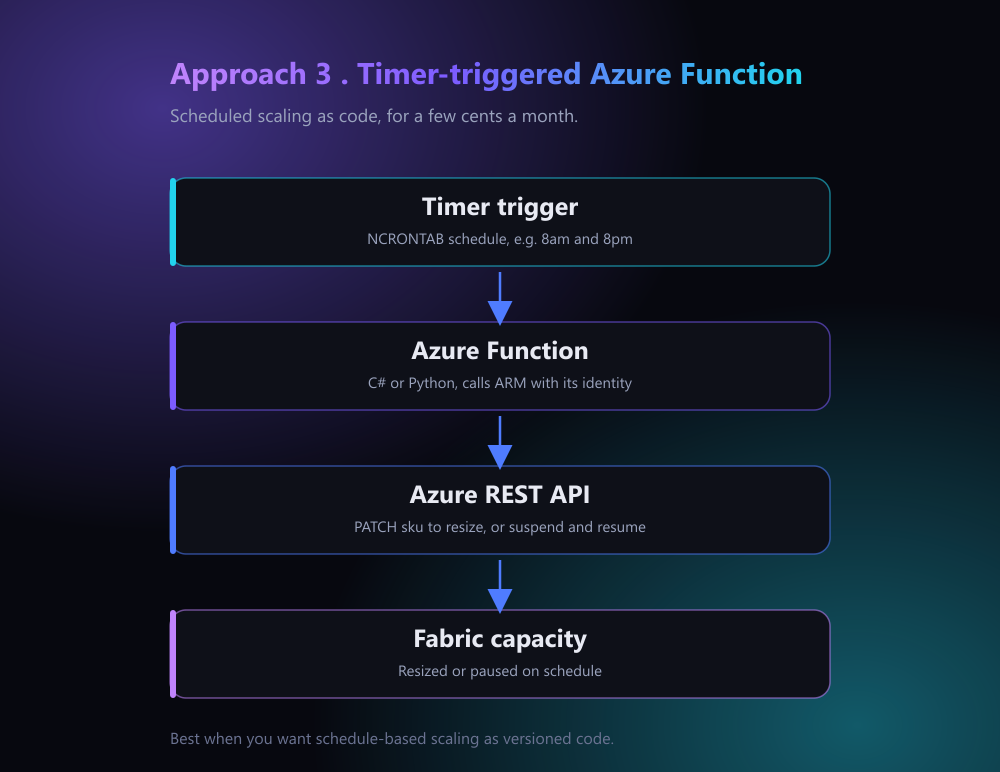
The wiring:
- Create a Function with a timer trigger. The schedule is an NCRONTAB expression, for example one Function that scales up at 8am and another that scales down at 8pm.
- Turn on the Function’s managed identity and assign the custom role above to it, scoped to the capacity.
- Call the REST API from code, using the Azure SDK or a plain HTTP request to the resize, suspend, or resume endpoints.
import azure.functions as func
import requests
from azure.identity import DefaultAzureCredential

app = func.FunctionApp()

@app.timer_trigger(schedule="0 0 20 * * 1-5", arg_name="timer")  # 8pm on weekdays
def scale_down(timer: func.TimerRequest) -> None:
    token = DefaultAzureCredential().get_token("https://management.azure.com/.default").token
    base = f"https://management.azure.com/subscriptions/{sub}/resourceGroups/{rg}/providers/Microsoft.Fabric/capacities/{name}"
    requests.patch(
        f"{base}?api-version=2023-11-01",
        headers={"Authorization": f"Bearer {token}"},
        json={"sku": {"name": "F16", "tier": "Fabric"}},
    )
Best for: teams who prefer their scheduled scaling as versioned, testable code.
Approach 4: Fabric-native reactive scaling with Activator
The three approaches above are all scheduled. The better question is whether you can scale reactively, the moment utilization actually climbs, and do it from inside Fabric. You can, and the signal that makes it possible is Fabric capacity overview events in Real-Time hub.
Every active capacity emits a Summary event every 30 seconds carrying its real utilization: capacityUnitMs against the capacity’s budget, and the throttling threshold percentages interactiveDelayThresholdPercentage, interactiveRejectionThresholdPercentage, and backgroundRejectionThresholdPercentage. A separate State event fires whenever the capacity changes state, such as becoming overloaded and starting to delay interactive requests.
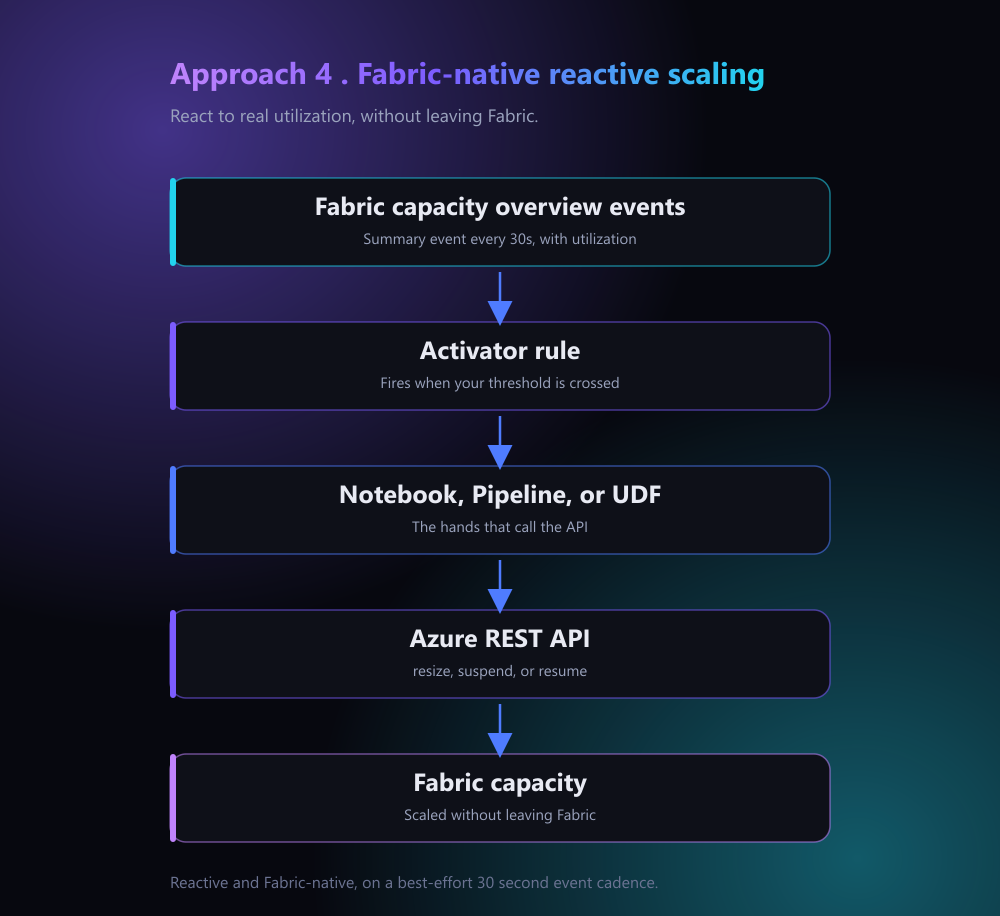
Activator, Fabric’s no-code event and rules engine, can subscribe to those capacity events directly, and when a rule fires it triggers a notebook, a pipeline, or a User Data Function that calls the scaling API. The whole loop lives inside Fabric.
The wiring:
- Point Activator at the capacity events. In Real-Time hub, open Fabric capacity overview events for your capacity and set an alert.
- Write the rule on a real signal. A clean one is
interactiveDelayThresholdPercentage: when it climbs past, say, 90 percent for a sustained window, interactive delay is about to begin, which is your cue to scale up. Alerting on the State event when the capacity becomes overloaded works too, if you would rather react to throttling as it starts. - Trigger the scaling item, a notebook that calls the REST API:
import requests
from azure.identity import ClientSecretCredential

# Use a service principal; keep the secret in Azure Key Vault, not in the notebook
cred = ClientSecretCredential(tenant_id, client_id, client_secret)
token = cred.get_token("https://management.azure.com/.default").token

base = f"https://management.azure.com/subscriptions/{sub}/resourceGroups/{rg}/providers/Microsoft.Fabric/capacities/{name}"
headers = {"Authorization": f"Bearer {token}", "Content-Type": "application/json"}

# Scale up to F64 when the rule fires
requests.patch(
    f"{base}?api-version=2023-11-01",
    headers=headers,
    json={"sku": {"name": "F64", "tier": "Fabric"}},
)
Two honest caveats. Capacity events are delivered best-effort on a roughly 30-second cadence, so write the rule to tolerate an occasional dropped or duplicated event rather than firing on a single reading. And a scale operation is not instant, so treat this as reacting to sustained pressure, not to a one-second spike.
Best for: Fabric-centric teams that want genuinely reactive scaling without leaving the platform.
One clarification on autoscale
It is worth separating two things people tend to merge. Fabric has no single toggle that resizes a capacity by load the way a virtual machine scale set does, and capacity utilization does not show up as an Azure Monitor metric. What Fabric gives you instead is the raw material to build reactive scaling yourself: real-time capacity events, an engine to act on them in Activator, and an API to do the resizing. Approach 4 is precisely that, assembled. If you would rather not build and maintain it, the scheduled approaches plus pause and resume capture most of the savings with far less to look after.
Choosing between them
| Approach | Driven by | Effort | Best fit |
|---|---|---|---|
| Logic App schedule | The clock | Low | Predictable business-hours patterns |
| Automation runbook | The clock | Low | Teams already in Azure Automation |
| Azure Function timer | The clock | Low | Scheduled scaling as code |
| Fabric Activator | Real load, ~30s events | Medium | Reactive scaling without leaving Fabric |
| Autoscale Billing for Spark | Spark demand | Low | Bursty Spark jobs specifically |
A reasonable default: start by pausing dev and test capacities off-hours, since that is the largest and easiest saving. Put a scheduled resize, via a Logic App, a runbook, or a Function, on predictable production capacities. Reach for Autoscale Billing for Spark when the pressure is Spark jobs rather than the capacity as a whole, and use Activator on Fabric capacity events when you want scaling to react to real load and stay inside the platform.
Gotchas worth knowing before you ship
- Permissions are specific. The identity doing the scaling needs the four capacity actions above. Use a tight custom role, not a broad privileged one.
- Resize timing is not instant everywhere. Scaling a sub-F64 capacity up to a larger size happens almost immediately, but the license update can take up to a day, and moving across the F256 to F512 boundary can be slower.
- Below F64 changes who can read your reports. F64 is the threshold at which free users with a viewer role can consume Power BI content. Scale below it and those users may be prompted to upgrade, so schedule the small size for hours when they are not working.
- Pausing bills your smoothed overage. When you pause, any remaining smoothed and burst usage is summed and added to your bill. Pausing also instantly ends throttling, which makes it a useful emergency lever, but content is unavailable until you resume.
- Prefer resize over workspace reassignment. Reassigning a workspace to another capacity cancels its running jobs. Resizing in place does not.
- Capacity events are best-effort. The Fabric capacity events that drive reactive scaling arrive on a roughly 30-second, best-effort cadence, so write rules that tolerate an occasional missed or duplicated event and react to sustained trends rather than a single reading.
Where this leaves you
Fabric hands you the levers but not the automation, and that is actually fine, because the automation is a few hours of work and the four patterns here cover almost every real usage shape. The mental model is simple: decide whether your savings come from a predictable schedule or from reacting to real load, pick the matching approach, and let the same two API calls do the work underneath.
The question worth asking about your own estate is not “how big should my capacity be,” it is “how often is it that big for no reason?” Answer that honestly and one of these four approaches will pay for itself in the first month.
Sources
This post is based on Microsoft’s public documentation:
- Scale your Fabric capacity (Microsoft Learn)
- Pause and resume your Fabric capacity (Microsoft Learn)
- Autoscale Billing for Spark in Microsoft Fabric (Microsoft Learn)
- What is Fabric Activator? (Microsoft Learn)
- What is the Microsoft Fabric Capacity Metrics app? (Microsoft Learn)
- Understand your Fabric capacity throttling (Microsoft Learn)
- Explore Fabric capacity overview events in Real-Time hub (Microsoft Learn)
- Fabric Capacities REST API: Update, Suspend, Resume (Microsoft Learn)
Amrutha Satishkumar
Data & AI Solution Engineer at Microsoft