Data · 11 min
From P to F: Migrating Power BI Premium to Fabric Capacity
Power BI Premium P SKUs are retiring and Fabric F SKUs are taking over. Here is what is changing, the timeline, the SKU map, and how to migrate cleanly.

Amrutha Satishkumar
July 6, 2026

The switch that looks like a rename but is not
If you run Power BI Premium, you have probably seen the letters change. Your P1 capacity now gets described in terms of an F64, and it is tempting to read this as a rebrand, a new label on the same box. It is not. Microsoft is retiring the Power BI Premium per capacity SKUs, the P SKUs, and moving everyone to Microsoft Fabric capacities, the F SKUs. The product you buy, the way you pay, and what you can build all change. Here is the clean version of what is happening and what to do about it.
What is actually happening
Power BI Premium has been folded into Microsoft Fabric. Power BI is now one experience inside Fabric, sitting alongside data engineering, data warehousing, data science, real time intelligence, and Data Factory. Because of that, the standalone Premium capacity SKUs are being retired.
The practical headline: you can no longer buy a P SKU. Existing P capacities can only be renewed, and only for a limited window. To keep using Premium features going forward, you buy a Fabric F SKU instead. An F SKU gives you everything Premium did, plus the rest of the Fabric platform.
The timeline that matters
The dates are the part people miss, so pin these down:
- New customers: P SKUs have not been available to purchase since July 1, 2024.
- Existing customers without an Enterprise Agreement: renewals were allowed until February 1, 2025. If your renewal date falls after that, you replace the P purchase with Fabric capacity at the end of your agreement.
- Customers with an Enterprise Agreement: you can keep renewing your P capacity annually until your EA ends, then move to Fabric.
- Sovereign cloud customers: not impacted for now, since Fabric is not yet available there.
Nothing breaks overnight, and no capacity is converted automatically. The trigger is your next renewal. That is the moment the decision lands on your desk.
The SKU map
Compute lines up cleanly. Each P SKU has an F SKU with the same capacity units and v-cores. Microsoft publishes the full P to F capacity table if you want the complete list.
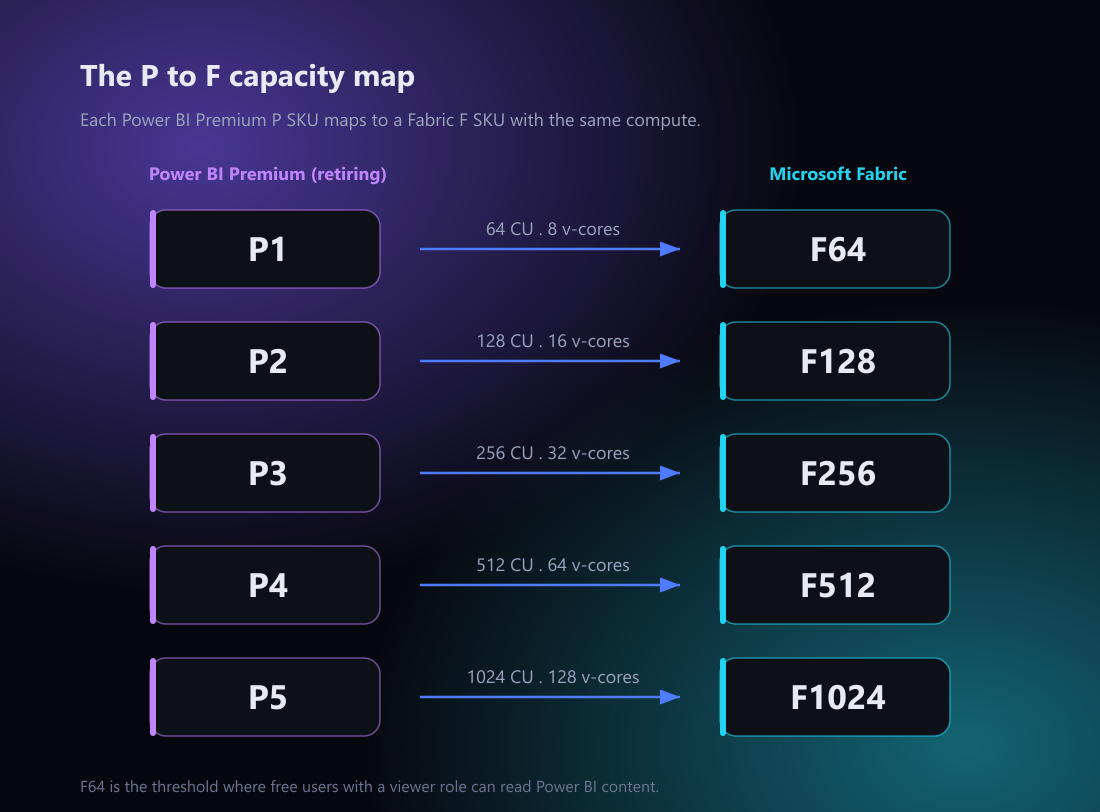
- P1 maps to F64 (8 v-cores)
- P2 maps to F128 (16 v-cores)
- P3 maps to F256 (32 v-cores)
- P4 maps to F512 (64 v-cores)
- P5 maps to F1024 (128 v-cores)
F64 is the number to remember. It is the threshold where users with only a free license and a viewer role can read Power BI content, the same benefit P1 gave you. Drop below F64 and every viewer needs a Pro or Premium Per User license, so most Premium customers land on F64 or higher.
One caution: the map is a compute comparison, not a promise of identical performance. Right size using the Fabric Capacity Metrics app or a Fabric trial before you commit, and involve your Microsoft representative on sizing.
Why F is more than a bigger P
If the switch were only a rename, this would be a chore. It is actually an upgrade, and that is worth understanding before you file it under paperwork.
- The whole Fabric platform, not just Power BI. Fabric is a superset of Premium. The same capacity that runs your reports also runs lakehouses, warehouses, notebooks, pipelines, eventhouses, and real time analytics. You stop paying for a reporting engine and start paying for a data platform.
- Azure billing and flexibility. P SKUs were a Microsoft 365 subscription with a monthly or yearly commitment. F SKUs are Azure resources. You can run pay as you go, or commit with a one year reservation that saves up to 40.5 percent over pay as you go pricing (see the Microsoft Fabric pricing page). Because they are Azure resources, you can also scale, pause, and resume capacity, which is a real cost lever for workloads that do not run around the clock.
- MACC eligible. Fabric spend counts toward your Microsoft Azure Consumption Commitment. For many enterprises that alone changes the math.
- Azure only features. Trusted workspace access, managed private endpoints, and Azure management surfaces are available on F SKUs and were never part of P.
- Embedded and Report Server included. Power BI Embedded comes with F SKUs, and Power BI Report Server is included with F64 and higher reserved instances.
How to migrate, step by step
The mechanics are simpler than the licensing, but the effort depends entirely on your scenario. Here is the full sequence.
Step 1: Pick your scenario
Figure out which one you are in before you touch anything, because the effort ranges from under an hour to a multi week project.
- Same tenant, same region. The easy path, and where most migrations land. You reassign your workspaces to the new Fabric capacity, and because it is a billing change rather than a rebuild, it covers both Power BI and Fabric items with nothing to recreate.
- Same tenant, different region. Doable for Power BI items, but there are two catches. A workspace that holds Fabric items (pipelines, shortcuts, ML, and so on) cannot move to another region until you move or delete those Fabric items first. And large data format semantic models cannot cross regions either, so you convert them to small data format first, or redeploy them. Budget more time.
- Cross region with Fabric items, or cross tenant. Not a simple reassignment. Cross tenant especially: nothing moves across tenants by assignment, every item has to be recreated in the new tenant. Treat these as recreate and redeploy projects rather than swaps.
A quick way to tell your bucket: check whether the target capacity is in the same Azure region as today, and whether your workspaces contain any non Power BI Fabric items. Same region plus Power BI only is the smooth path.
Step 2: Line up the prerequisites
Get these in place before migration day so nothing blocks you mid move:
- Buy the target Fabric capacity. Create the F SKU in the Azure portal, sized from your actual usage (see Step 3), and check the Microsoft Fabric pricing page for the SKUs and regional rates. If this is the first Fabric capacity on the subscription, register the Microsoft.Fabric resource provider first, otherwise provisioning fails.
- Sort out the roles. Assign the Fabric Administrator role to whoever runs the tenant level move, and the Capacity Administrator role to whoever manages the new capacity. To reassign an individual workspace, you also need admin rights on that workspace and assignment rights on the target capacity.
- Check reservation permissions. If you want the one year reservation discount, confirm you have the Azure owner or reservation purchaser role on the subscription, and buy the reservation before running any automated tooling.
- Confirm your quota. Fabric capacity is subject to an Azure quota of capacity units per subscription and region. In the Azure portal, open Quotas, filter to Microsoft Fabric, and request an increase if you lack headroom for the new capacity. Increases are usually auto approved within minutes.
Step 3: Discover before you move
Do not lift and shift blindly. Inventory first:
- List what is actually in the capacity. Old, unused reports and workspaces are a chance to clean up rather than carry over, which also lowers the capacity size you need.
- Right size with real data. Use the Microsoft Fabric Capacity Metrics app (formerly the Power BI Premium Capacity Metrics app) or a Fabric trial to measure current utilization, then map that to the target F SKU instead of guessing.
- Flag the awkward items early. Large semantic models and any Fabric items change the plan, especially cross region. Large data format models must be converted to small data format before any cross region move.
- Consider a Fabric off switch. If you have few or no Fabric items, temporarily turning off Fabric features as you migrate can speed things up. This is Microsoft’s own recommended shortcut for Power BI only estates.
Step 4: Move the workspaces
Pick the method that matches your scale.
Manual, for a handful of workspaces:
- Per workspace: open the workspace settings and reassign it to the new Fabric capacity. You need admin rights on the workspace and assignment rights on the target capacity.
- In bulk from the admin portal: while managing the target capacity, use the assign workspaces options. You can assign by user or group (every workspace that user or group administers, including their personal workspace), by specific workspace name, or the entire organization at once.
Automated, for many workspaces or multiple P SKUs:
- Import Microsoft’s open source Capacity Migration notebook from the semantic-link-labs project into your Fabric tenant.
- Set the parameters and run it. It creates a pay as you go F SKU in the same region, with equivalent capacity and the same admins, then migrates all the workspaces. It can handle a single capacity, a list, or all of them, and it can migrate trial capacities to paid ones.
- Finish the parts it does not automate. It will not carry over capacity level settings such as disaster recovery, notifications, and delegated tenant settings, and it will not set up a reserved instance, so handle those yourself.
Step 5: Cut over, then clean up
Once your workspaces are on the new capacity, close it out and watch for these:
- Delete the old P capacity. Once everything is migrated and verified, remove the retired Power BI Premium capacity so you are not carrying it.
- Safety nets. You get a free Premium capacity for the first 30 days after your old subscription ends, matched to your previous P size, and you keep access to your Power BI data for 90 days while you transition. This is designed so you are not paying for two capacities at once.
- Pick a quiet window. Microsoft’s guidance is to migrate when users and jobs are not active, to reduce the chance of failures.
- Jobs. When a workspace is reassigned, its active jobs are cancelled and need a rerun. Scheduled jobs are not affected and resume once migration is complete.
- Do not downsize below F64. F32 or lower loses Premium features and free viewer access, so most Premium customers stay at F64 or higher.
- Validate after cutover. A P1 workspace moved to its F64 equivalent should behave the same, but Microsoft recommends confirming through testing if you have specific performance concerns.
Where this is heading
The P to F move is Microsoft closing the gap between business intelligence and data platform. Power BI is no longer a product you buy on its own. It is a view into Fabric. If you treat the renewal as a simple swap, you will end up on F and never touch the four fifths of the platform you are now paying for. The teams that win here treat the migration as the moment to ask a bigger question: now that the reporting capacity is also a full data platform, what else should live on it?
Is your next renewal before or after you have a Fabric plan? That is the only deadline that really matters.
Sources
Everything here is drawn from Microsoft’s public announcements and documentation:
- Important update coming to Power BI Premium licensing (official Power BI blog, the retirement timeline)
- Power BI Premium FAQ (Microsoft Learn, transition, migration, and grace periods)
- Understand Microsoft Fabric licenses (Microsoft Learn, SKUs and capacity rules)
- Automate your migration to Microsoft Fabric capacities (Microsoft Fabric blog, manual and automated migration steps)
- Microsoft Fabric quotas (Microsoft Learn, viewing and requesting capacity quota)
- Microsoft Fabric pricing (Azure, F SKUs with regional pay as you go and reservation rates)
Amrutha Satishkumar
Data & AI Solution Engineer at Microsoft